 Zency Scan
- Create a workflow
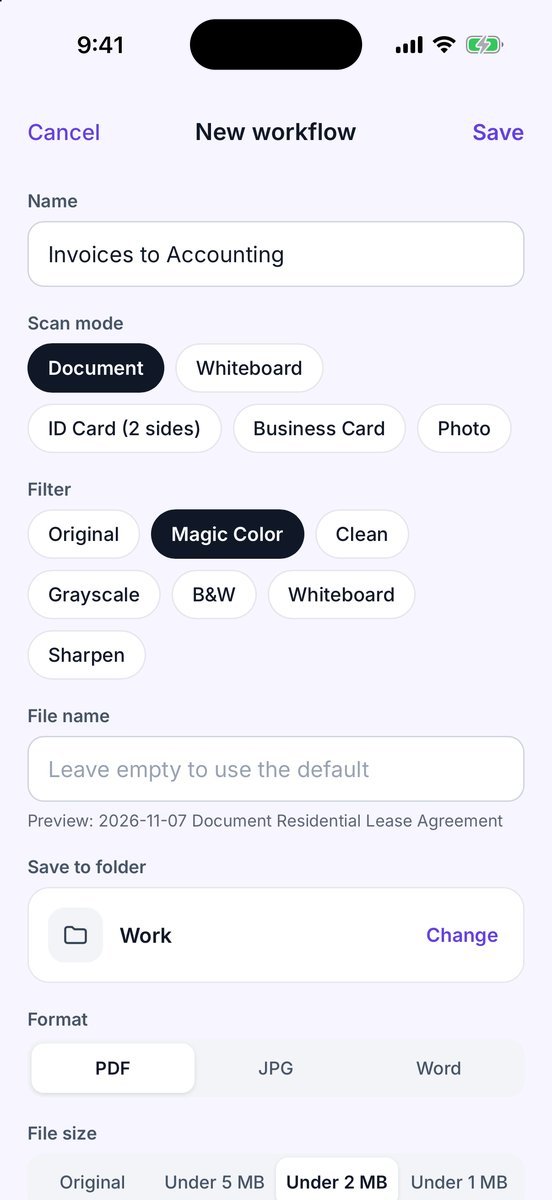
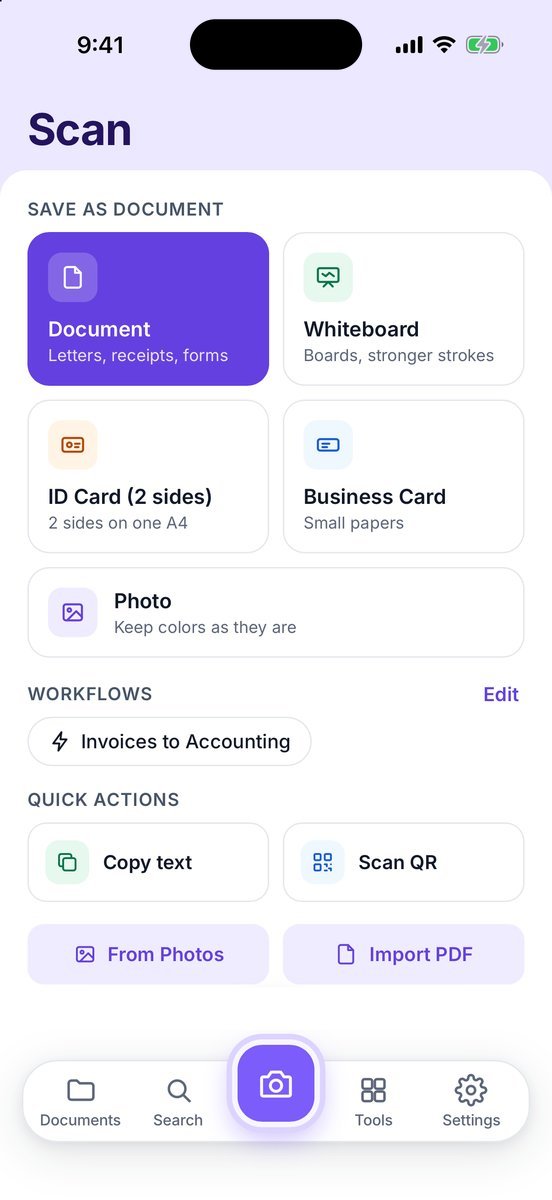
Go to Settings → Workflows → + New workflow, or tap Edit next to Workflows on the Scan screen.
- Name it and pick the scan
Give it a Name (e.g. “Invoices to Accounting”), then choose the Scan mode and Filter.
- Choose where it goes
File name (leave empty for your default), Save to folder, Format (PDF, JPG or Word), File size, Paper and Searchable text.
- Choose what happens after
After saving: Share, Email or Save to Files. Password when sending: No password or Ask each time. Tap Save.
- Run it
Tap the workflow's chip on the Scan screen, scan, and tap Save. Drag workflows in Settings to set their order.
More screens
Tips
- Email opens your own mail app with the message ready — nothing goes through a Zency server.
Free or Pro? You can have up to 5 workflows. The first is free; the rest need Pro after your first 20 pages, and so do Ask each time passwords, Searchable text and Word for later pages.
See it in a real situation: Freelancers: sign and return a contract without a printer.