 Zency Scan
- Open the document
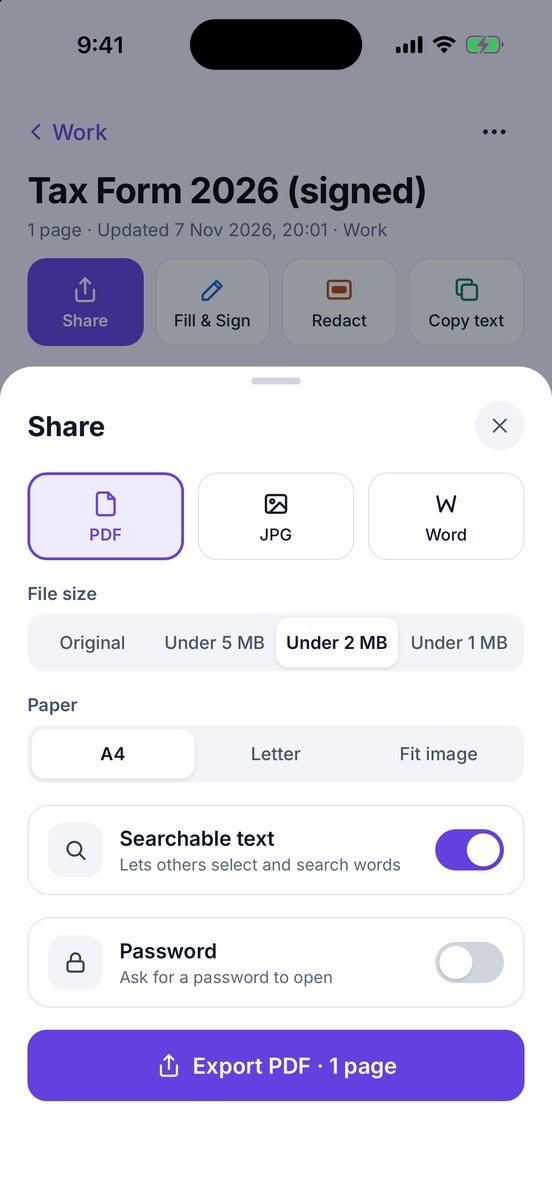
Open it in Documents and tap Share.
- Pick the format
PDF, JPG or Word (an editable .docx — size, paper and password don't apply to it).
- Set the size and paper
File size: Original, Under 5 MB, Under 2 MB or Under 1 MB. Paper: A4, Letter or Fit image.
- Add extras
Searchable text lets others select and search the words. Password asks for a password when the PDF is opened.
- Export
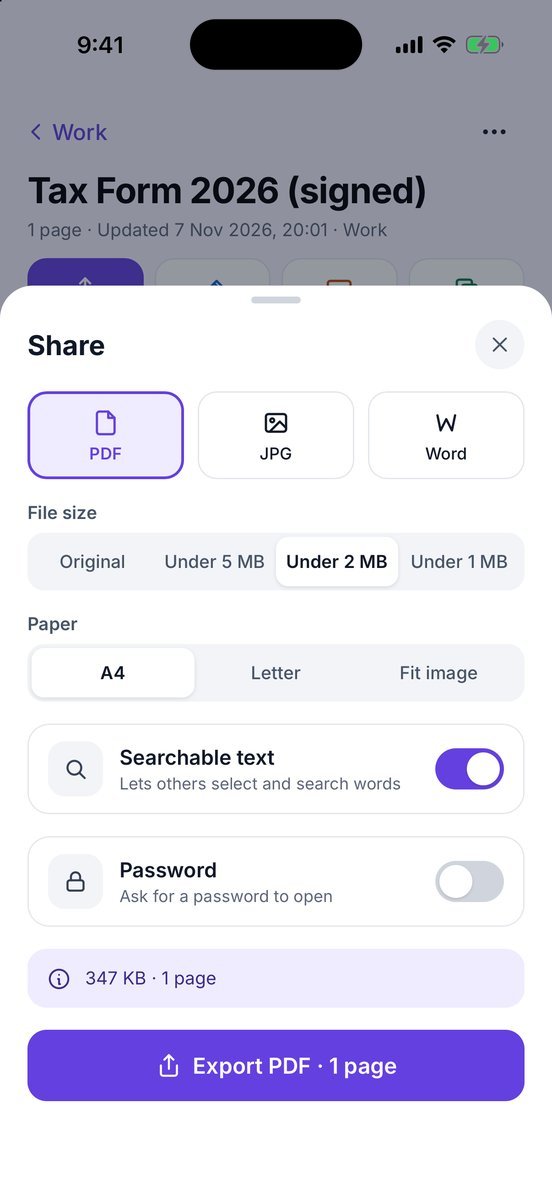
Tap Export PDF · 1 page and pick Mail, Messages, Files or any app. When you come back, the sheet shows the final size, e.g. 347 KB · 1 page.
More screens
Tips
- Upload form says “max 2 MB”? Pick Under 2 MB, then check the final size shown before you upload — very long scans may need to be split.
- Too many pages to fit? Send only some of them with Split PDF.
Free or Pro? PDF and JPG export, file size and paper are always free, with no watermark. Word and searchable text are free for documents made from your first 20 pages; for later pages they need Lifetime Pro ($7.99 once). Adding a password is Pro.
See it in a real situation: Job application asks for one PDF? Combine diplomas, certificates and references.