 Zency Scan
- Open Tools
Tap Tools in the tab bar at the bottom of the app.
- Tap Searchable PDF
Choose the document from your library — the box at the top searches by name or text.
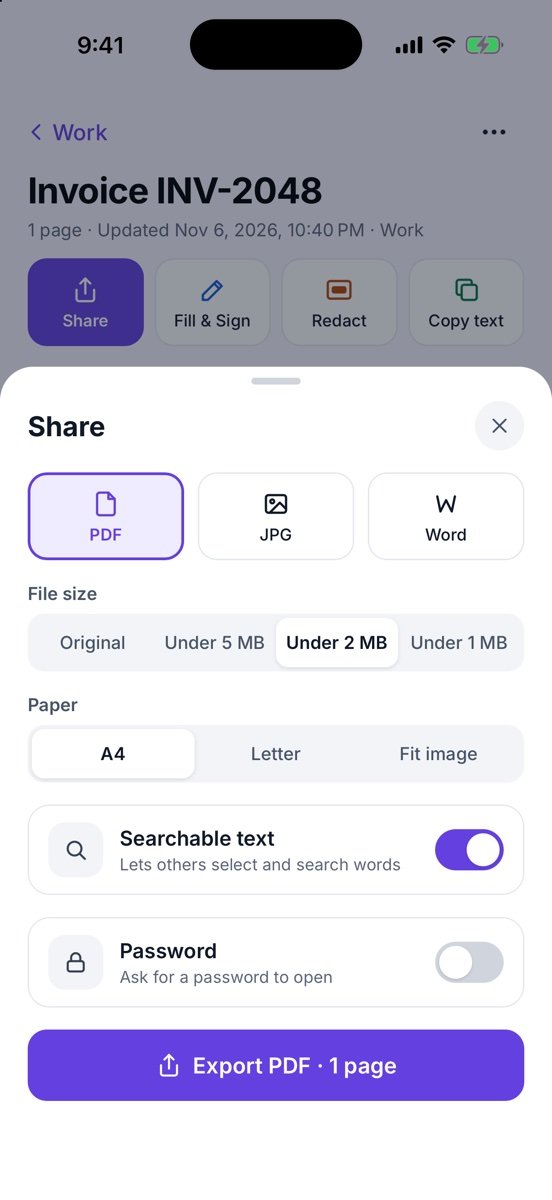
- Check the settings
The Share sheet opens with PDF and Searchable text already on. Change the file size or paper if you like.
- Export
Tap Export PDF · 1 page and pick where to send or save it.
More screens
Tips
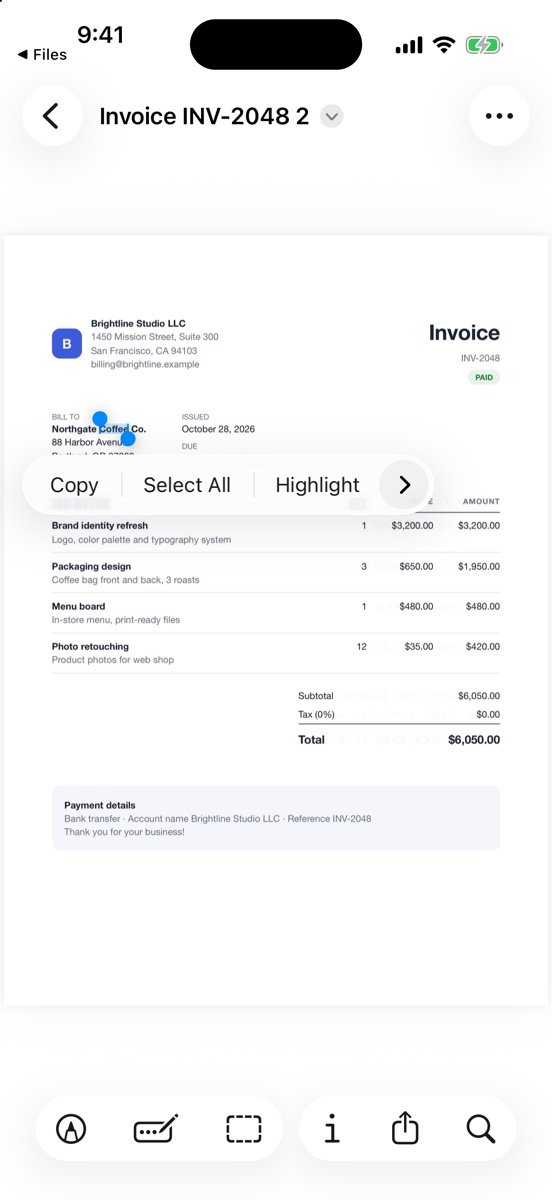
- It works on documents in your library. For a PDF from email, use Import PDF on the Scan screen first.
- Handwriting is not recognized; printed text works best.
Free or Pro? A text layer on the pages of your first 20 pages is free forever. For pages added after that, it needs Lifetime Pro ($7.99 once, no subscription).
See it in a real situation: Job application asks for one PDF? Combine diplomas, certificates and references.