 Zency Scan
Offline document scanner: scan and OCR privately on your phone
Passports, leases, pay slips, lab results — the papers we scan are often the most personal ones we own. Many scanner apps send pages to a server for text recognition or store them in their own cloud. Here is how to keep the whole process on your phone.
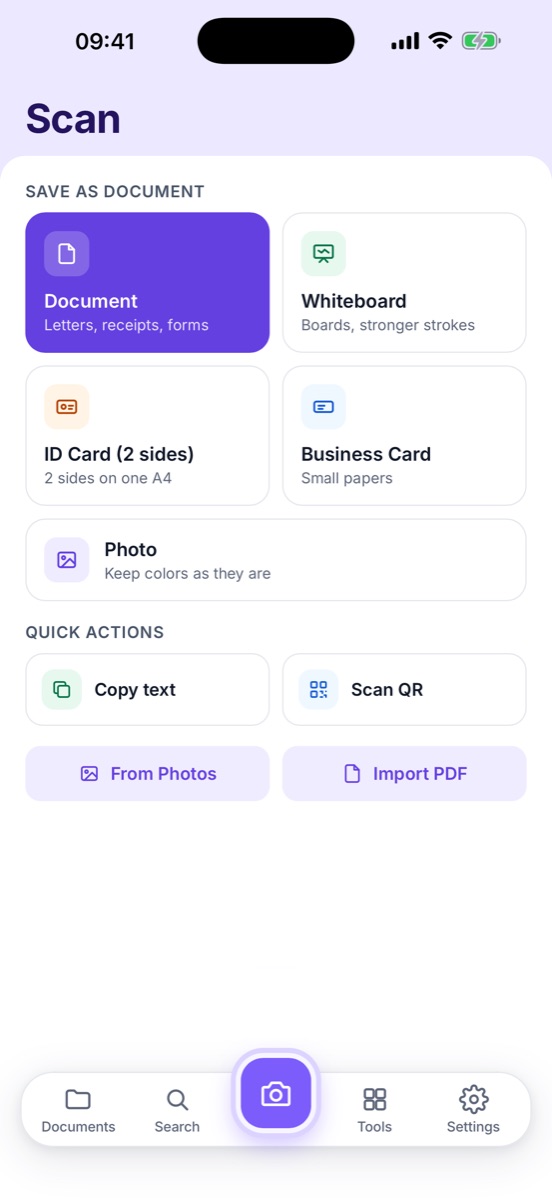
Pick a scanner whose text recognition runs on the phone (Apple Vision on iPhone, Google ML Kit on Android), that needs no account and doesn't upload pages by default. Zency Scan works this way: scanning, OCR and search stay on your phone. On Android, the first scan may need a connection once to download the scanner module.
What "offline" should mean for a scanner
An offline document scanner should be able to do three things with airplane mode on:
- Capture — find the page edges, flatten and clean the image.
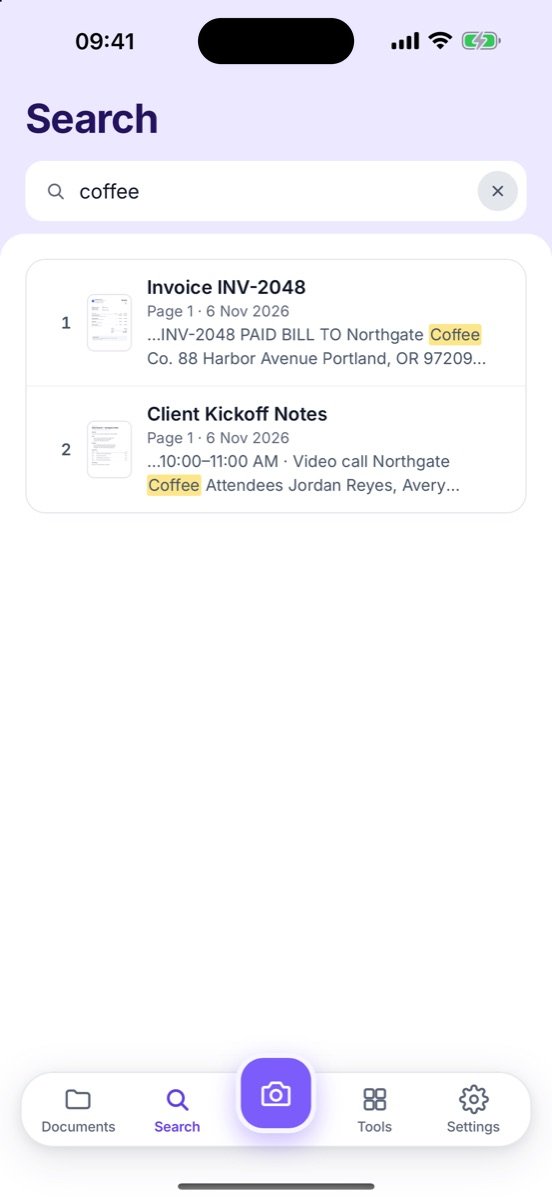
- Read — recognize the text (OCR) so you can search and copy it.
- Export — create a PDF or image you can share when you choose.
If any of these needs an internet connection, your pages are probably leaving the device.
How on-device OCR works
Modern phones ship with text-recognition engines that run locally: Apple's Vision framework on iPhone and Google's ML Kit on Android. An app that uses them can turn a photo of a page into searchable text in about a second, without a server. The trade-off is that the app can only do what the on-device engine supports — for example, printed text works far better than handwriting.
A 5-point privacy check for any scanner app
- Turn on airplane mode and scan. Does OCR still work? Can you still search?
- Look for a forced sign-in. An account usually means your documents are tied to a server.
- Read the store's privacy label ("App Privacy" on the App Store, "Data safety" on Google Play). Look for "Data not collected" or a short, specific list.
- Check the default save location. Some apps automatically save scans to their cloud. Adobe Scan's App Store listing, for example, says scans are "automatically saved to Adobe Document Cloud" — useful for some people, but not offline.
- Check how you move to a new phone. A local app needs an export or backup file; that is a sign your data really lives on the device.
Zency Scan: built to stay on your phone
- No account — open the app and scan.
- On-device OCR — every page is read on the phone, then searchable offline.
- No cloud upload, no analytics, no ads — read our short privacy policy.
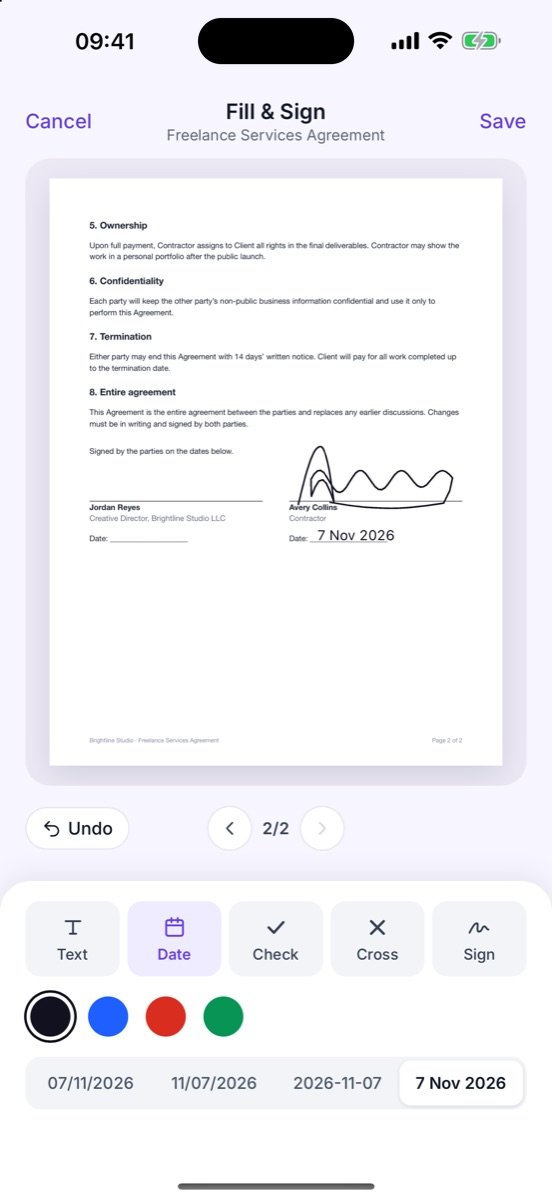
- App lock with a PIN and Face ID or fingerprint (free), and password-protected PDF export (Pro).
- You decide what leaves — share a PDF, JPG or Word file, or export a full backup file for a new phone.
It is free to scan and export, and the first 20 pages include every Pro feature. Lifetime Pro is a one-time $7.99.
What offline cannot do
Being honest about trade-offs: an offline scanner will not sync your library to a laptop by itself, and if you lose your phone without a backup, the scans are gone with it. Export a backup now and then, or keep your phone's own device backup on.
Common questions
Is on-device OCR as accurate as cloud OCR?
For clear printed documents it is very good. Cloud services can be better at handwriting and unusual layouts, but they require sending the page to a server.
Can I scan sensitive documents like IDs?
Yes. With an offline app the image stays on your device. Lock the app and avoid sharing the exported file over channels you do not trust.
Does Zency Scan need internet at all?
Only to buy or restore Pro through the App Store or Google Play, to check for app updates, and on Android for Google Play services to download the document scanner module the first time. After that, scanning and OCR work offline.
- Lock the app — PIN plus Face ID or fingerprint.
- Back up & move to a new phone — Export your whole library to one file, import it anywhere.
- Redact — Black out or blur account numbers, addresses and IDs.