 Zency Scan
- Open Settings
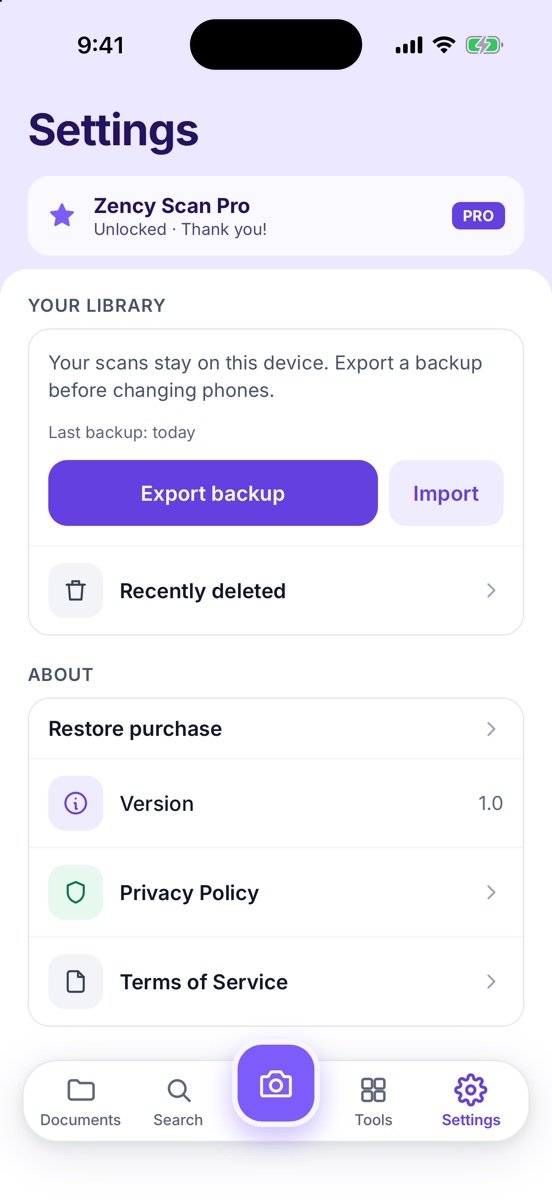
Go to Settings and scroll to Your library. It shows when you last backed up.
- Export a backup
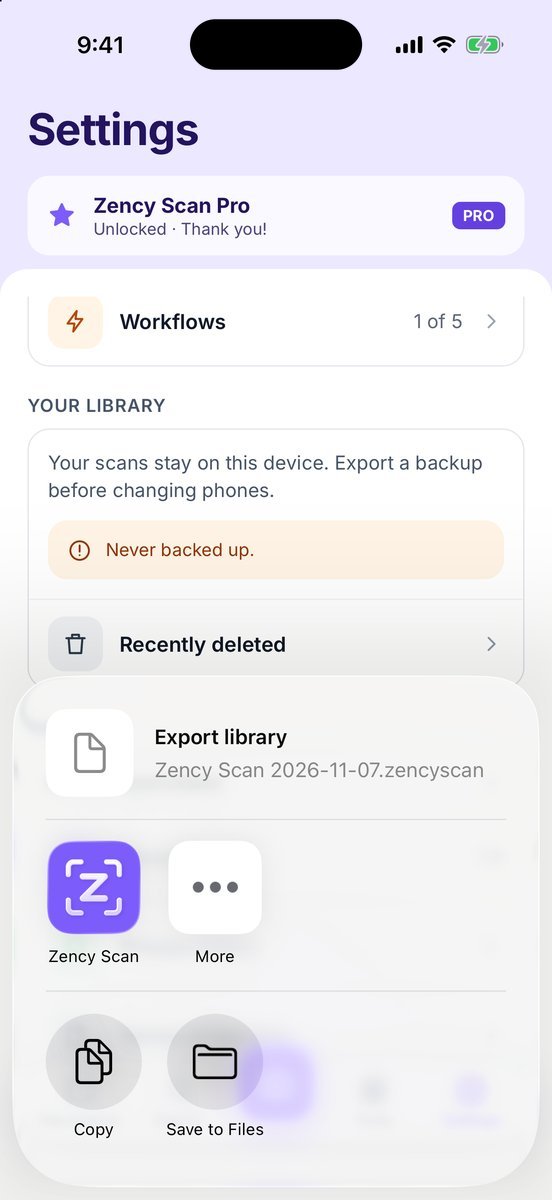
Tap Export backup, then choose where to save Zency Scan 2026-11-07.zencyscan: iCloud Drive, Google Drive, a computer or a USB drive.
- On the new phone
Install Zency Scan, go to Settings → Your library → Import and pick the file. Nothing on that phone is replaced — the backup is added.
- Restore Pro
Tap Restore purchase in Settings. Pro is tied to your Apple ID or Google account, not to the backup.
More screens
Tips
- The backup includes folders, documents, recognized text, workflows, your file name pattern and your saved signature. It does not include the app lock PIN, your Pro purchase or Recently deleted.
- The file contains all your documents — store it like you would the paper originals.
Free or Pro? Backup and import are free.
See it in a real situation: Offline document scanner: scan and OCR privately on your phone.