 Zency Scan
- Open Tools
Tap Tools in the tab bar at the bottom of the app.
- Tap Compress PDF
It is in the Pro group — called More tools once you have Pro. A sheet asks where the file is: From Documents (your scans in Zency Scan) or From Files (a PDF on your phone — from email, iCloud Drive, Google Drive or Downloads).
- Pick a target size
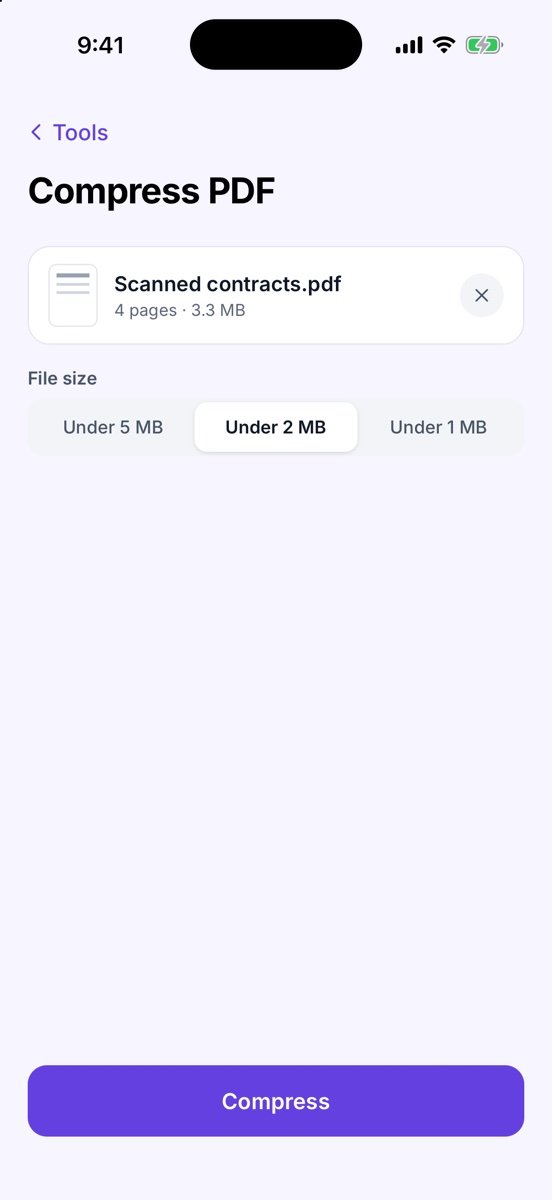
Under 5 MB, Under 2 MB (the default) or Under 1 MB.
- Compress
Tap Compress.
- Share or save the result
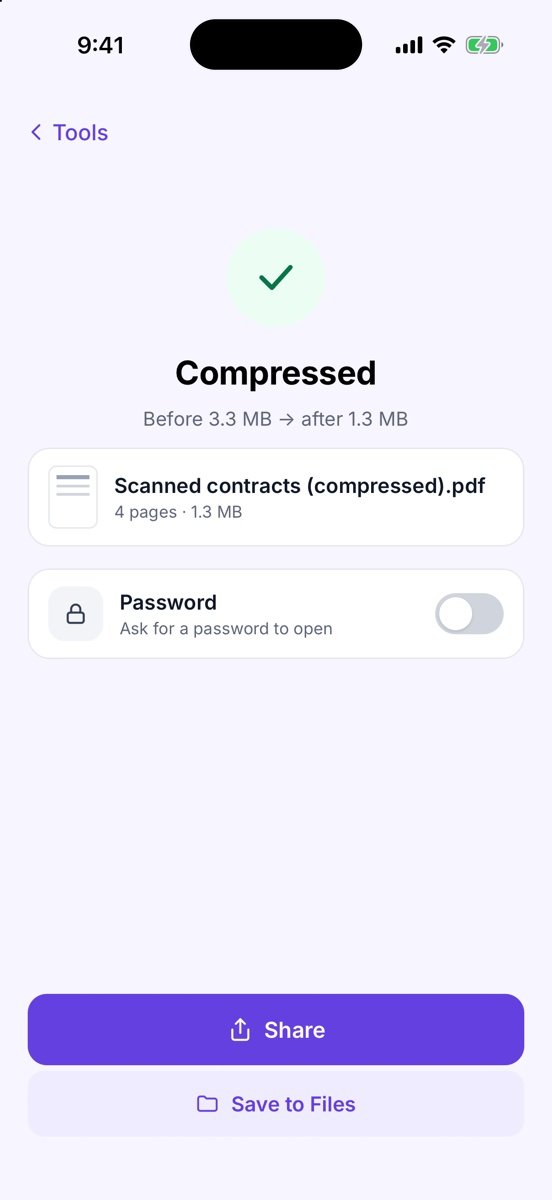
You see Compressed and the sizes, e.g. Before 3.3 MB → after 1.3 MB. Turn on Password if the new PDF should ask for one. Tap Share to send it, or Save to Files to keep it. The original file is never changed.
More screens
Tips
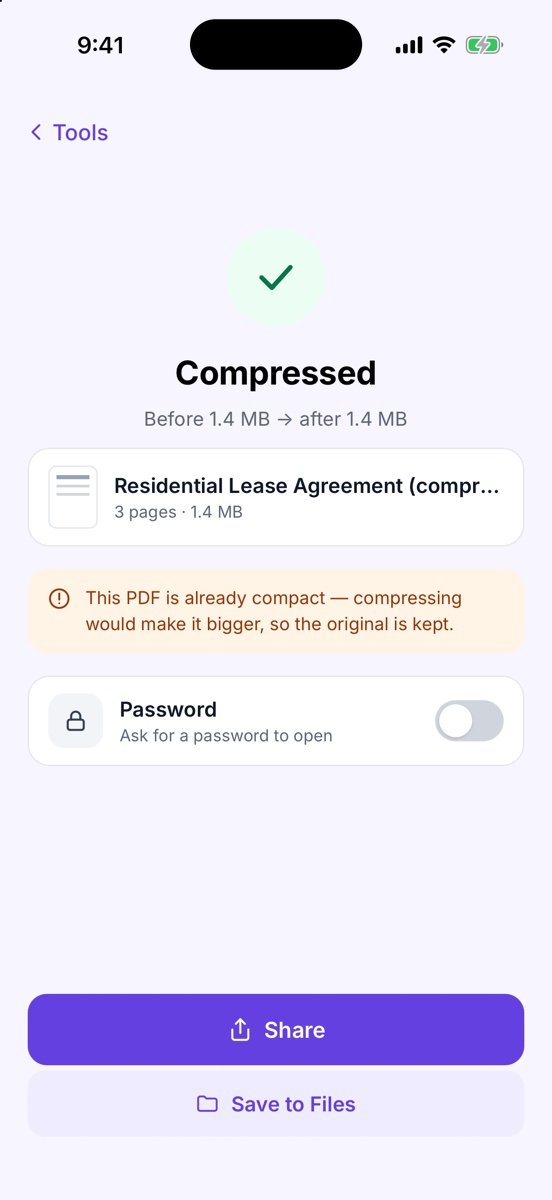
- If the PDF is already small, you see This PDF is already compact and the original is kept, rather than making it bigger.
- Couldn’t get it under 1 MB tells you the smallest size it can reach — try a bigger limit or split the document.
- The result is saved to Files (not to your library) so the compression is kept exactly.
- For your own scans, the free route is Share → File size → Under 2 MB.
- Password-protected PDF? The tool asks for the password (Password required), then carries on. Under Password when sending you can keep the same password on the result, remove it or set a new one.
Free or Pro? This is a Pro tool. It is included while you add your first 20 pages, so you can try it on a real document; after that it needs Lifetime Pro ($7.99 once, no subscription).
See it in a real situation: Renting an apartment? Put your rental application together on your phone.