 Zency Scan
- Open Documents
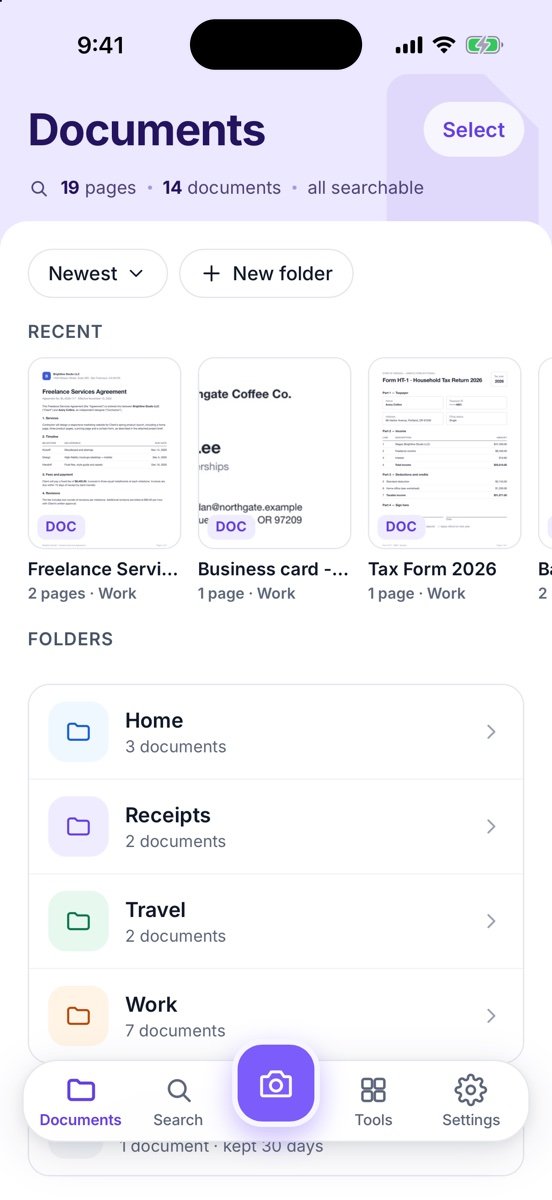
Tap Documents. From the top: Pinned (if you pinned anything), Recent, Folders, then documents Not in a folder.
- Make a folder
Tap + New folder, or create one while saving a scan.
- Move, rename, pin or delete
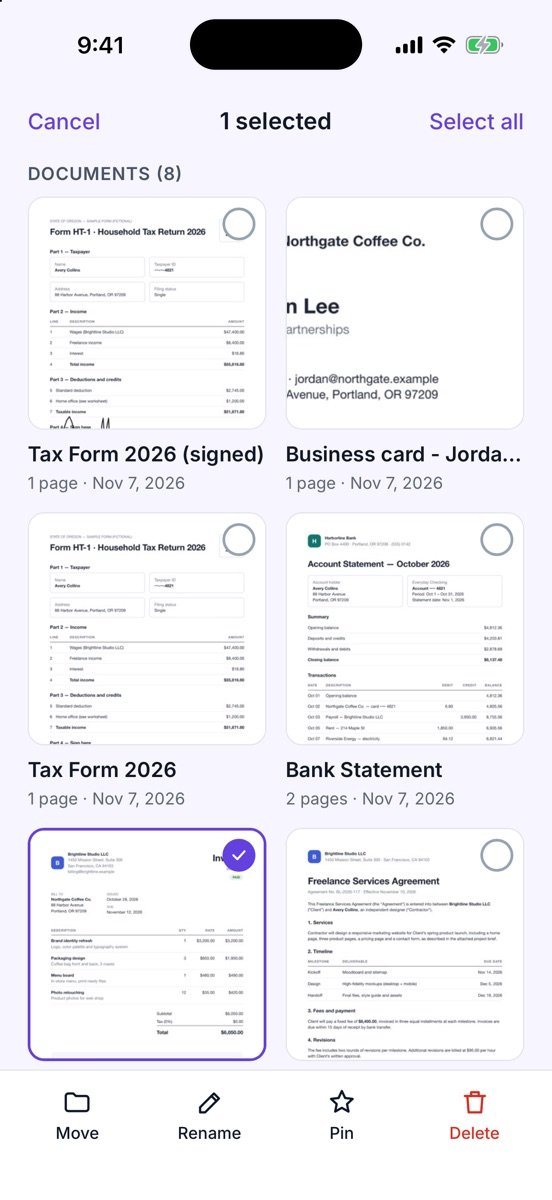
Touch and hold an item, or tap Select, then use Move, Rename, Pin or Delete at the bottom. Select all picks everything in view.
- From inside a document
The … menu has Rename, Move, Pin, Export to Word, Save page to Photos and Delete.
- Find it again
Use the Search tab to find a document by name — or by any word on its pages.
More screens
Tips
- Newest ▾ changes the sort order.
- Deleted documents wait 30 days in Recently deleted.
Free or Pro? This is free, with no watermark and no page limit.