 Zency Scan
- Open Tools
Tap Tools in the tab bar at the bottom of the app.
- Tap Reorder pages
A sheet asks where the file is: From Documents (your scans in Zency Scan) or From Files (a PDF on your phone — from email, iCloud Drive, Google Drive or Downloads).
- Rearrange
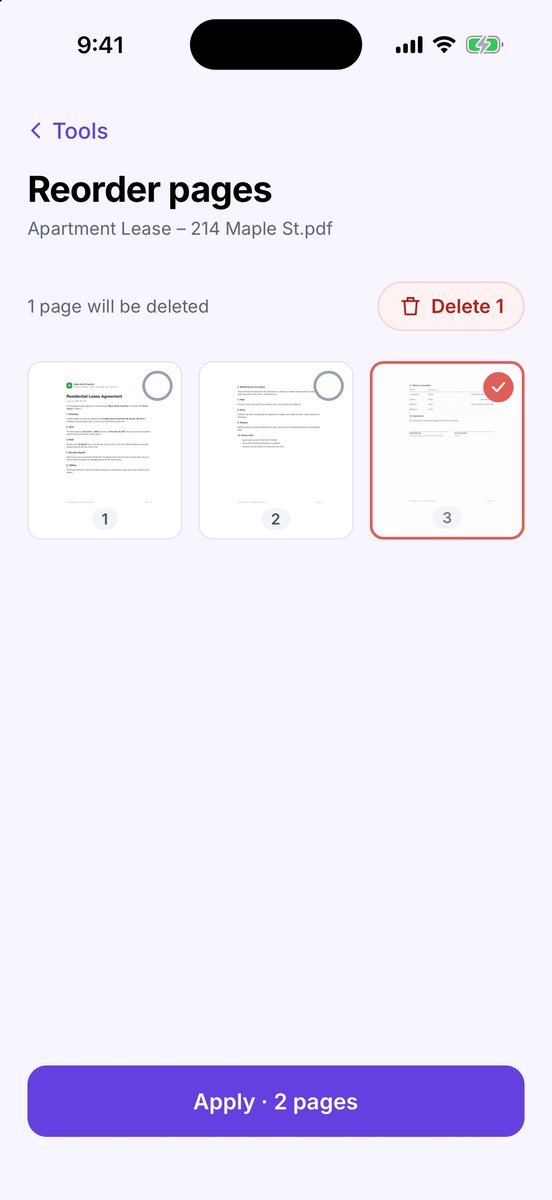
Drag to reorder · Tap to mark for delete. Drag a page thumbnail to its new place.
- Mark pages to delete
Tap a page to mark it (red outline); tap again to keep it. The app shows 1 page will be deleted.
- Apply
Tap Apply · 2 pages.
- Share or save the result
You see PDF ready and the new file. Turn on Password if the new PDF should ask for one. Tap Share to send it, or Save to Documents to keep it. The original file is never changed.
Tips
- Right after scanning you can do the same in Review, before you save.
- Password-protected PDF? The tool asks for the password (Password required), then carries on. Under Password when sending you can keep the same password on the result, remove it or set a new one.
Free or Pro? This is free, with no watermark and no page limit.