 Zency Scan
- Open Tools
Tap Tools in the tab bar at the bottom of the app.
- Tap PDF to images
A sheet asks where the file is: From Documents (your scans in Zency Scan) or From Files (a PDF on your phone — from email, iCloud Drive, Google Drive or Downloads).
- Convert
Check the file and tap Convert.
- Share or save the images
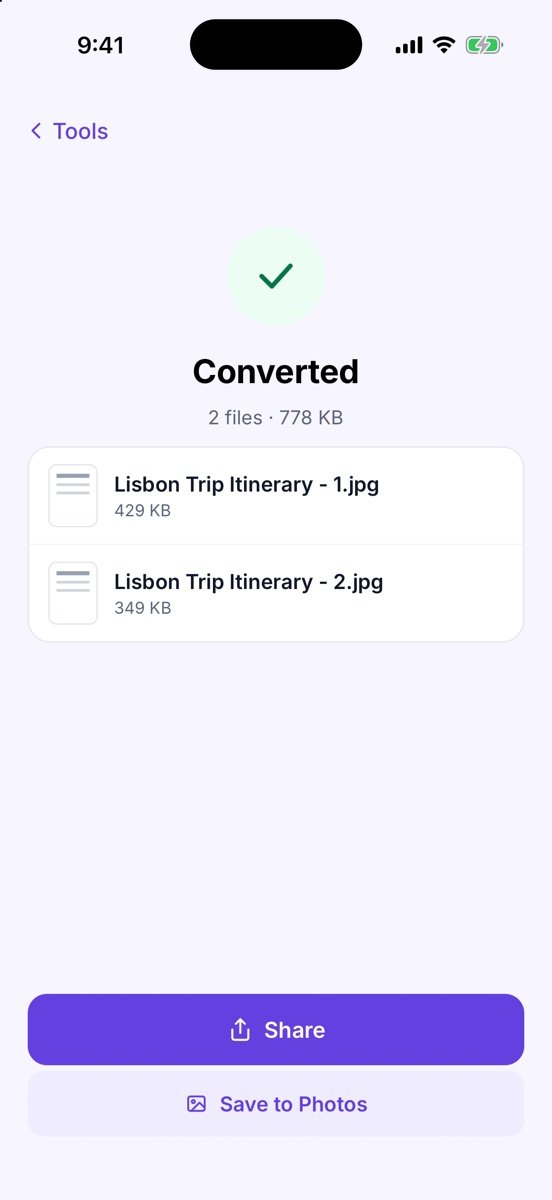
You see Converted and one JPG per page, e.g. Lisbon Trip Itinerary - 1.jpg. Tap Share to send them, or Save to Photos to put them in your photo library.
Tips
- Sending just one page? Share the document as JPG instead.
- Password-protected PDF? The tool asks for the password (Password required), then carries on. Under Password when sending you can keep the same password on the result, remove it or set a new one.
Free or Pro? This is free, with no watermark and no page limit.